Users judge the entire network by the Wi-Fi. If video calls stutter in the meeting room or a laptop drops when someone walks to the kitchen, nobody cares how well the core switches are configured. Good enterprise Wi-Fi design is the difference between a wireless network that just works and one that generates a steady stream of tickets. This guide covers the decisions that matter: how to gather requirements, how to survey a site, how to plan channels across 2.4, 5 and 6 GHz, how wide those channels should be, how to make roaming seamless with 802.11k, v and r, how to secure the network with WPA3, and how to plan for capacity rather than just coverage.
Start with requirements, not access points
The most common Wi-Fi design mistake is starting with a number of access points. Start with what the network must support instead:
- Devices: how many users, how many devices per user, and what kinds (laptops, phones, scanners, IoT sensors, voice handsets). Note the oldest and least capable clients, because they constrain the design.
- Applications: video conferencing, voice over Wi-Fi, file transfers, cloud apps, real-time inventory scanning. Each has different throughput, latency and roaming requirements.
- Areas: open offices, meeting rooms, auditoriums, warehouses, outdoor spaces. Each area gets its own coverage and capacity targets.
- Security: corporate, guest and IoT access, and how each authenticates.
- Constraints: building materials, ceiling types, mounting options, cabling paths, aesthetics, budget and regulatory domain.
From these requirements you derive design targets. Common targets for a voice-grade enterprise network are a primary signal strength of about -67 dBm, a signal-to-noise ratio of at least 25 dB, and a second access point audible at roughly the same level in every location so clients have somewhere to roam. Data-only areas can tolerate weaker signals, while dense areas need more attention to capacity than to coverage.
Site surveys: predictive, passive and active
A site survey translates requirements into a design that fits the actual building. There are several types, and a professional design usually combines them.
| Survey type | How it works | Best used for |
|---|---|---|
| Predictive | Floor plans are imported into planning software, walls are assigned attenuation values, and AP placement is modeled | Initial design, budgeting and new buildings |
| AP-on-a-stick (APoS) | A real AP is temporarily mounted at planned locations and measured | Validating predictions in difficult buildings, warehouses and healthcare |
| Passive | A survey adapter listens to all beacons while you walk the site | Measuring coverage and co-channel interference of an existing network |
| Active | The survey device connects to the network and measures throughput, retries and roaming | Validating real client experience and roaming behavior |
| Spectrum analysis | A spectrum analyzer detects non-Wi-Fi interference | Finding microwave ovens, wireless cameras, Bluetooth and other interferers |
For a new deployment, the typical sequence is a predictive design, an APoS validation in representative areas, installation, and then a post-deployment passive and active validation survey. For an existing network with complaints, start with a passive survey and spectrum analysis to find out what is really happening.
Building materials matter
Drywall attenuates relatively little, while concrete, brick, elevator shafts, metal shelving, coated glass and water (including people) absorb or reflect much more. Higher frequencies lose more signal through obstacles, which is why 5 and 6 GHz cells are smaller than 2.4 GHz cells. Accurate wall types in the predictive model are the single biggest factor in prediction quality.
Quick client-side checks
Survey tools are essential for design, but built-in commands are useful for a quick look at what a client sees:
# Windows: current connection, then every visible BSSID with channel and signal
netsh wlan show interfaces
netsh wlan show networks mode=bssid

# Linux: scan and show SSID, frequency and signal for each BSS
sudo iw dev wlan0 scan | grep -E "BSS|SSID|freq|signal"
Bands and channel planning: 2.4, 5 and 6 GHz
Each band has distinct characteristics. A modern enterprise design uses all three deliberately rather than treating them as interchangeable.
| Band | Non-overlapping 20 MHz channels (US) | Strengths | Limitations |
|---|---|---|---|
| 2.4 GHz | 3 (channels 1, 6 and 11) | Longer range, supported by nearly every device | Very few channels, crowded, interference from Bluetooth and microwaves |
| 5 GHz | Up to 25, depending on DFS channel use | Many channels, good balance of range and capacity | DFS channels can be vacated when radar is detected; some clients avoid DFS |
| 6 GHz | 59 (5.925 to 7.125 GHz) | Clean spectrum, wide channels, only modern clients | Shorter range, requires Wi-Fi 6E or Wi-Fi 7 clients and WPA3; availability varies by country |
2.4 GHz
In the US, use only channels 1, 6 and 11 at 20 MHz. Using other channels creates adjacent-channel interference that is worse than sharing a channel. Because 2.4 GHz cells are larger, an AP density chosen for 5 GHz usually results in too many 2.4 GHz radios. Disable 2.4 GHz on some APs or convert those radios to 5 GHz or monitoring, so the 2.4 GHz cells do not overlap excessively. Keep 2.4 GHz for legacy and IoT devices that need it.
5 GHz
The 5 GHz band is the workhorse of most current networks. Channels in the UNII-2 and UNII-2 Extended ranges require Dynamic Frequency Selection (DFS): if an AP detects radar, it must leave the channel. Include DFS channels to gain capacity, but check that your critical clients support them, and watch for frequent radar events near airports, ports and weather stations.
6 GHz
The 6 GHz band, opened for Wi-Fi 6E and used by Wi-Fi 7, is the biggest improvement in spectrum in decades. In the US, 1,200 MHz is available: 59 channels at 20 MHz, 29 at 40 MHz, 14 at 80 MHz and 7 at 160 MHz, plus 320 MHz channels for Wi-Fi 7. Other regions, including much of Europe, allow a smaller portion of the band, so check your regulatory domain. Indoor enterprise APs typically operate in Low Power Indoor (LPI) mode, while Standard Power operation requires coordination through an Automated Frequency Coordination (AFC) system.
Because 6 GHz is reserved for newer devices, it is free from legacy clients and their slow transmissions, which makes it ideal for high-performance SSIDs. Since 6 GHz signals attenuate more, a common approach for new deployments is to plan AP density for 6 GHz coverage, which comfortably covers 5 GHz as well.
Channel width, transmit power and data rates
Channel width
Wider channels deliver higher peak speeds for a single client, but they reduce the number of channels available for reuse. In a multi-AP building, that means more APs sharing the same channel, which creates co-channel contention: radios on the same channel must take turns, so total capacity can drop.
- 2.4 GHz: always 20 MHz.
- 5 GHz: 20 MHz in very dense environments, 40 MHz in most offices. Use 80 MHz only in low-density areas or where you have few APs.
- 6 GHz: 80 MHz is often practical thanks to the large number of channels; 160 MHz and 320 MHz suit specific high-throughput areas with few nearby APs.
Transmit power
Running APs at maximum power is a classic mistake. A loud AP may be heard by a client far away, but the client, which typically transmits at lower power, cannot be heard as well in return. The result is asymmetric links, sticky clients and more co-channel interference. Set AP power to create appropriately sized cells, and keep it in a range closer to what typical clients transmit. Let the controller’s radio resource management adjust within minimum and maximum limits that you define.
Minimum data rates
Disable the legacy 802.11b rates (1, 2, 5.5 and 11 Mbps) and set a higher minimum basic rate, commonly 12 or 24 Mbps on 5 GHz. Management frames such as beacons are sent at the lowest basic rate, so higher minimum rates reduce airtime overhead, shrink the effective cell edge and encourage clients to roam sooner. Test before raising rates aggressively, because some older devices may lose connectivity at the edge.
Seamless roaming with 802.11k, 802.11v and 802.11r
In Wi-Fi, the client decides when and where to roam. Access points can only help it make a good decision and complete the move quickly. Three amendments do most of that work.
| Amendment | Name | What it does |
|---|---|---|
| 802.11k | Radio Resource Measurement | The AP provides a neighbor report listing nearby APs and channels, so the client scans fewer channels before roaming |
| 802.11v | BSS Transition Management | The network can suggest that a client move to a better AP, for example when the client’s signal is weak or the AP is overloaded |
| 802.11r | Fast BSS Transition (FT) | Key derivation for the new AP happens in advance, so the client avoids a full 802.1X or SAE authentication when it roams |
The value of 802.11r is largest on 802.1X networks, where a full EAP authentication against a RADIUS server can take long enough to interrupt voice and video. With fast transition, the key exchange is folded into the reassociation, keeping the roam short enough that real-time applications are not disrupted.
Roaming also depends on the network design underneath. Clients roam well when:
- Every location has a strong secondary AP, so there is somewhere to go.
- Cells are sized with appropriate power and minimum rates, so clients do not cling to distant APs.
- The same SSID, security settings and VLAN are available across the roaming area, so the client keeps its IP address.
- Client drivers are current. Driver updates often fix roaming behavior more than any AP setting can.
Security: WPA3, 802.1X and segmentation
Wireless security choices today are clearer than they used to be:
- WPA3-Enterprise with 802.1X is the standard for corporate devices. Use EAP-TLS with certificates where possible, so there are no passwords to phish. Authentication happens against a RADIUS server using UDP 1812, with accounting on UDP 1813. WPA3-Enterprise also offers an optional 192-bit mode for high-security environments.
- WPA3-Personal uses Simultaneous Authentication of Equals (SAE), which resists offline dictionary attacks against the passphrase. Use it for small sites and IoT where 802.1X is impractical, ideally with per-device or per-group passphrases if your platform supports them.
- Protected Management Frames (802.11w) are mandatory with WPA3 and prevent spoofed deauthentication attacks.
- Enhanced Open (OWE) encrypts guest traffic without a password, which is a big improvement over open guest networks.
- WPA3 transition mode allows WPA2 and WPA3 clients on one SSID during migration, but it keeps some WPA2 weaknesses. Plan to retire it.
Map each SSID to a VLAN and enforce policy between those VLANs on the firewall: guests reach the internet only, IoT devices reach only what they need, and corporate devices reach internal resources based on role. The VLANs explained guide covers the switching side, and the firewall hardening checklist covers policy between segments. Remember that hiding an SSID is not a security control, and that many clients now use randomized MAC addresses, which weakens any access control or reporting based on MAC addresses.
Capacity planning
Coverage answers “can I connect?” Capacity answers “does it work when everyone is here?” Most modern problems are capacity problems. Here is a simple, transparent method.
- Count devices per area. Multiply users by devices per user and estimate how many are active at once.
- Define throughput per device from the applications, for example a few Mbps for HD video calls and less for email and web apps.
- Calculate aggregate demand: active devices multiplied by throughput per device.
- Divide by realistic throughput per radio, not the theoretical maximum on the box. Real throughput depends on channel width, client capabilities, interference and protocol overhead.
- Distribute the radios across bands and channels, then validate with the predictive model.
For example, suppose an open office area will have 150 devices active at once, each needing 5 Mbps. Aggregate demand is 150 multiplied by 5, or 750 Mbps. If you assume, for planning purposes, that each 5 GHz radio at 40 MHz delivers about 150 Mbps of usable aggregate throughput in your environment, you need at least 750 divided by 150, or five 5 GHz radios serving that area on separate channels, before adding headroom. With 6 GHz-capable clients in the mix, some of that demand moves to the 6 GHz radios. The assumption is the part to validate; the method stays the same.
Do not forget the wired side
- PoE budget: Wi-Fi 6E and Wi-Fi 7 APs often need IEEE 802.3at (up to 30 W at the switch port) or 802.3bt (60 W for Type 3, 90 W for Type 4) to run all features. Check the switch’s total PoE budget, not just the per-port capability.
- Uplink speed: modern APs can exceed 1 Gbps. Multigigabit ports (2.5GBASE-T and 5GBASE-T, IEEE 802.3bz) avoid a bottleneck, and Category 6A cabling supports 10GBASE-T at up to 100 meters. The structured cabling and fiber basics guide covers cable categories and testing.
- DHCP and addressing: size scopes for peak device counts plus randomized MAC churn, and use shorter lease times on guest networks.
Validation and ongoing operations
A design is not complete until it has been validated. After installation, perform a passive survey to confirm coverage, SNR and channel reuse, and an active survey to confirm throughput and roaming. Walk the routes people actually take, such as corridors, stairwells and between meeting rooms, while running a voice or video call.
Then keep the network healthy:
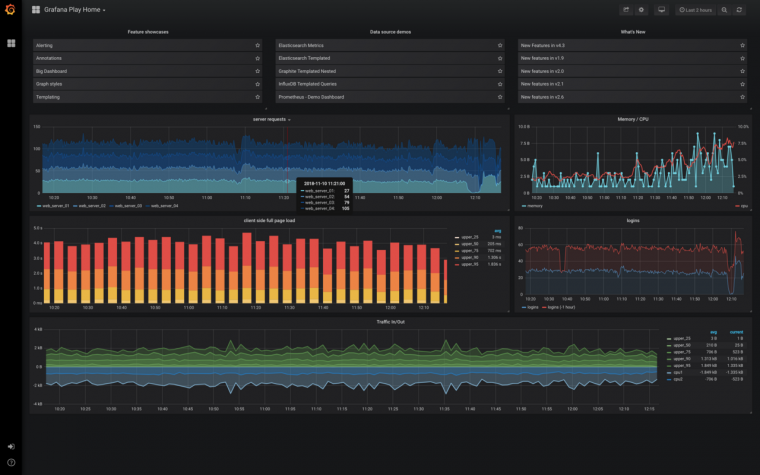
- Monitor client counts, channel utilization, retry rates, roaming events and authentication failures. The Network Monitoring 101 guide explains how to bring wireless metrics into your wider monitoring.
- Re-survey after significant changes, such as renovations, new furniture layouts or a large increase in headcount.
- Keep AP firmware and controller software current, and test client compatibility after major upgrades.
- Troubleshoot wireless complaints systematically: identify the client, location, time and AP, then check signal, interference and authentication logs before changing settings, following the structured troubleshooting methodology.
Key takeaways
- Design from requirements: devices, applications, areas and security, then derive signal, SNR and capacity targets.
- Combine predictive design with on-site validation; accurate wall attenuation drives prediction quality.
- Use channels 1, 6 and 11 on 2.4 GHz, include DFS on 5 GHz where clients allow, and adopt 6 GHz for modern clients.
- Prefer 20 or 40 MHz on 5 GHz in dense areas, avoid maximum transmit power, and disable legacy low data rates.
- Enable 802.11k and 802.11v, use 802.11r after testing your device fleet, and design for a strong secondary AP everywhere.
- Use WPA3-Enterprise with EAP-TLS for corporate devices, OWE for guests, and segment SSIDs into VLANs with firewall policy.
- Plan capacity with transparent math, and size PoE, uplinks and DHCP to match.
Struggling with dead spots, dropped calls or slow Wi-Fi in busy areas? A Network Health Assessment includes a review of your wireless design and gives you a clear, prioritized plan, and the Small Business Network Setup service designs and deploys Wi-Fi alongside the switching and security it depends on. For anything else, contact us.