You can read about spanning tree, OSPF and VLAN trunking for months, but nothing makes them click like building a network yourself, breaking it and fixing it again. A home network lab is the single best investment you can make in your networking career, and it does not have to be expensive. Whether you have zero budget and a laptop or room for a small rack of used equipment, this guide shows you how to choose between physical and virtual options, what hardware to run it on, and how to design a lab that grows with your skills.
Why every network professional needs a lab
A lab gives you something production never can: permission to fail. In a lab you can mismatch OSPF timers, create a switching loop, misconfigure a native VLAN or lock yourself out with an ACL, and the only consequence is learning. That freedom is what turns memorized facts into the intuition you need under pressure.
A lab also helps you:
- Prepare for certifications. Exams such as the CCNA test hands-on configuration and troubleshooting skills, not just theory.
- Test changes safely. Before you touch a production switch, you can rehearse the exact change and the rollback in a lab.
- Learn new vendors and technologies. Multi-vendor labs let you compare platforms without buying them.
- Practice automation. Scripts and playbooks need devices to talk to, and a lab is the safest place to run untested code.
- Build a portfolio. Documented lab projects are excellent material for interviews, especially if you are working your way from network administrator to network engineer.
Start with your goals, not your shopping list
The most common home lab mistake is buying equipment first and figuring out what to do with it later. Decide what you want to learn over the next six to twelve months, then build the smallest lab that supports it.
| Goal | What the lab needs | Good starting platform |
|---|---|---|
| CCNA or general fundamentals | A few switches and routers, VLANs, OSPF, NAT, DHCP, ACLs | Packet Tracer, then GNS3, EVE-NG or Cisco Modeling Labs |
| Professional-level routing and switching | Many routers, real IOS or IOS XE images, BGP, multi-area OSPF, redistribution | EVE-NG, GNS3 or Cisco Modeling Labs |
| Network automation | Devices with SSH and APIs, a Linux host with Python and Ansible, version control | Containerlab, plus any emulator with API-capable images |
| Security and firewalls | A virtual or physical firewall, several segments, a few client VMs | A hypervisor with an open source firewall plus an emulator |
| Wireless | Physical access points and client devices | Physical gear; RF cannot be meaningfully virtualized |
Physical vs. virtual: the honest trade-offs
There is a long-running debate about whether a “real” lab needs physical gear. The honest answer is that both have strengths, and most experienced engineers end up with a mostly virtual lab plus a little hardware.
| Factor | Physical lab | Virtual lab |
|---|---|---|
| Upfront cost | Moderate; used gear can be inexpensive per device | Free to low if you already own a capable computer |
| Scale | Limited by budget, space and power | Dozens of devices on a single host with enough RAM |
| Realism | Real cabling, consoles, ASIC behavior, PoE and boot processes | Real software in emulators; limited hardware-specific features |
| Flexibility | Recabling takes time | New topologies in minutes; save and snapshot labs |
| Noise, heat, power | Enterprise gear can be loud and power hungry | Quiet, efficient on modern hardware |
| Software currency | Affordable used gear often runs older, unsupported releases | Can run current images where licensing allows |
| Wireless and PoE | Fully supported | Not realistically possible |
For most learners, virtual should come first. It is cheaper, more flexible and covers the overwhelming majority of routing and switching topics. Add physical gear when you want hands-on experience with consoles, cabling, PoE, wireless or specific hardware features.
Virtual lab platforms compared
Each major platform has a different philosophy. Understanding those differences helps you pick the right tool, or the right combination, for your goals.
Cisco Packet Tracer
Packet Tracer is a free network simulator available through Cisco’s Networking Academy. It runs on Windows, macOS and Linux and needs very little computing power. Because it is a simulator rather than an emulator, it implements a subset of IOS commands and features rather than running real IOS. That makes it ideal for beginners and for most CCNA topics, and its simulation mode, which lets you watch packets move step by step, is an excellent teaching tool. You will eventually outgrow it when you need advanced features or exact real-device behavior.
GNS3
GNS3 is a free, open source network emulator with a desktop client and a large community. It runs real network operating system images using QEMU/KVM virtualization, older Cisco router images via the Dynamips emulator, and Docker containers. On Windows and macOS, the recommended setup runs the heavy lifting inside the GNS3 VM, while the desktop client handles the topology. GNS3 can also connect lab devices to your real network through cloud nodes, which is handy for testing automation from your workstation.
EVE-NG
EVE-NG (Emulated Virtual Environment, Next Generation) is a multi-vendor emulation platform that you install as a virtual machine or directly on a dedicated server, then manage through a web browser. A free Community Edition covers most home lab needs, while the paid Professional edition adds features aimed at power users and teams. Its browser-based interface makes it convenient to run on a separate server and access from any computer, which suits a dedicated home lab host well.
Containerlab
Containerlab is an open source tool that builds network topologies from containerized network operating systems on a Linux host. You describe the topology in a YAML file, deploy it with a single command, and destroy it just as quickly. It supports container-native platforms such as Nokia SR Linux, Arista cEOS, Juniper cRPD and FRRouting, and can also wrap some VM-based images. Because topologies are just text files, Containerlab fits naturally into Git and CI pipelines, making it a favorite for network automation work. Container-based nodes are also much lighter on RAM than full virtual machines.
Cisco Modeling Labs
Cisco Modeling Labs (CML) is Cisco’s official network simulation platform. The personal license includes legally licensed Cisco images such as IOSv, IOS XE, NX-OS and others, which removes the most common headache in Cisco-focused labs: obtaining images legitimately. Cisco has also offered a free tier with a limited node count; check Cisco’s site for current editions and terms.
Platform comparison at a glance
| Platform | Type | Cost model | Runs real images | Best for |
|---|---|---|---|---|
| Packet Tracer | Simulator | Free with Networking Academy account | No | Beginners, CCNA fundamentals |
| GNS3 | Emulator | Free, open source | Yes (bring your own images) | Flexible multi-vendor labs on a workstation |
| EVE-NG | Emulator | Free Community, paid Professional | Yes (bring your own images) | Larger labs on a dedicated host, browser access |
| Containerlab | Container orchestration | Free, open source | Yes (container NOS images) | Automation, lab-as-code, lightweight topologies |
| Cisco Modeling Labs | Emulator | Paid personal license; limited free tier offered | Yes (Cisco images included) | Cisco certification labs with licensed images |
Lab as code: a quick Containerlab example
To see how lightweight a modern lab can be, here is a complete two-router Containerlab topology using Nokia SR Linux, which is freely available as a container image. Save it as two-node.clab.yml on a Linux host with Docker installed:
name: two-node
topology:
  nodes:
    srl1:
      kind: nokia_srlinux
      image: ghcr.io/nokia/srlinux
    srl2:
      kind: nokia_srlinux
      image: ghcr.io/nokia/srlinux
  links:
    - endpoints: ["srl1:e1-1", "srl2:e1-1"]
Deploy, inspect, connect and tear down the lab with a handful of commands:
sudo containerlab deploy -t two-node.clab.yml
sudo containerlab inspect -t two-node.clab.yml
docker exec -it clab-two-node-srl1 sr_cli
sudo containerlab destroy -t two-node.clab.yml
Containerlab names each node clab-<lab name>-<node name> and gives it a management address, so you can reach it with SSH or point automation tools at it immediately. Commit the YAML file to Git and you have a reproducible lab you can rebuild anywhere in under a minute. In production use, pin a specific image tag rather than relying on the latest one, so your lab behaves the same every time.
Choosing physical gear
If you want hardware, buy deliberately. A small, quiet setup that you actually power on is worth more than a full rack that stays off because of the noise.
What to look for
- Switches. Two or three managed switches let you practice VLANs, trunks, EtherChannel and spanning tree. At least one Layer 3 capable model lets you practice SVIs and inter-VLAN routing. Older Catalyst models in the 2960 and 3560 families are common in CCNA labs.
- Routers. One or two routers with spare interfaces cover NAT, DHCP, static routing and OSPF. Older Integrated Services Router generations are widely available used.
- Firewall. An open source firewall distribution on a small multi-NIC mini PC is an inexpensive way to practice segmentation and VPNs.
- Wireless. A business-grade access point that supports multiple SSIDs mapped to VLANs teaches far more than a consumer router.
- Accessories. A USB console cable, a few patch cables of different colors for different purposes, and a labeled power strip.
Practical considerations
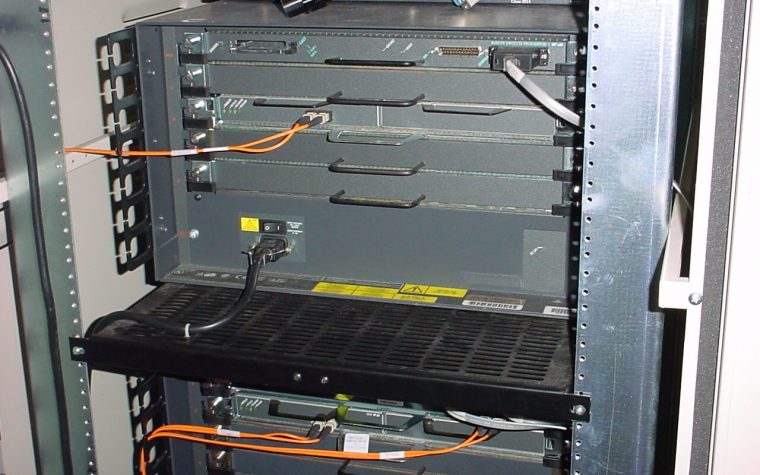
Enterprise switches and routers are designed for data centers and wiring closets, not spare bedrooms. Before you buy, check the fan noise, power draw and heat output, and look for fanless or compact models when the lab will share space with people. Confirm that the device’s software release supports the features you want to practice; very old releases may lack commands that appear in current exam blueprints.
Hardware for a virtual lab host
For virtual labs, the host computer matters more than anything else. Emulated network devices are surprisingly hungry, and the bottleneck is almost always memory.
- RAM. This is your scaling limit. Lightweight images and containers need a few hundred megabytes, while full virtual routers and data center switch images can need several gigabytes each. As a rough guide, 16 GB handles small labs, 32 GB is comfortable for CCNA-level work, and 64 GB or more suits large multi-vendor topologies.
- CPU. Hardware virtualization support (Intel VT-x or AMD-V) is essential. More cores let you boot and run more devices at once. If you run an emulator inside another hypervisor, you also need nested virtualization enabled.
- Storage. Use an SSD. Booting many virtual devices from a spinning disk is painfully slow.
- Form factor. A mini PC or a used business workstation is quiet and efficient. Used rack servers offer lots of RAM cheaply but are often loud and power hungry.
A popular approach is to install a bare-metal hypervisor such as Proxmox VE on a dedicated box, then run EVE-NG or the GNS3 VM, a Containerlab host, a firewall VM and a few Linux and Windows client VMs side by side. That turns one quiet machine into a flexible, always-available lab you can reach from your laptop.
Budget tiers: what to build at each price point
Here are four practical tiers. Prices for used hardware vary widely by region, condition and timing, so treat the ranges below as rough ballpark figures in US dollars rather than quotes.
| Tier | Approximate budget | What you get | What you can learn |
|---|---|---|---|
| Starter | $0 | Your existing computer with Packet Tracer, plus GNS3 or Containerlab with free images such as FRRouting or SR Linux | CCNA fundamentals, routing protocols, basic automation |
| Hands-on | Around $100–$300 | A RAM upgrade for your computer, or two used managed switches, a used router and a console cable | Physical cabling and console skills, VLANs, trunks, STP, inter-VLAN routing |
| Dedicated host | Around $300–$800 | A mini PC or used workstation with 64 GB RAM running a hypervisor, plus one small physical switch | Large virtual topologies, multi-vendor labs, firewalls, automation pipelines |
| Advanced | $800 and up | A more powerful host or several hosts, licensed simulation software, physical switches, a firewall and a business-grade access point | Professional-level labs, wireless, security, realistic campus and branch designs |
Start at the lowest tier that serves your current goal. You can always add hardware later, and you will make much better purchasing decisions once you know what your labs actually need.
First labs and best practices
Once your lab is running, structure matters as much as hardware. Good habits here mirror good habits in production.
Keep the lab isolated
Connect your lab to your home network through a single, controlled point, such as a firewall VM or a dedicated router performing NAT. Never let a lab DHCP server or a spanning tree experiment leak onto the network your family or housemates use. If your home switch supports VLANs, give the lab its own VLAN.
Document and version everything
Keep a simple diagram, an addressing table and the goal of each lab. Store configurations, topology files and scripts in a Git repository. This builds exactly the documentation habits employers look for and lets you rebuild any lab quickly.
Good first projects
- Build a three-VLAN network with trunks and router-on-a-stick, then convert it to SVIs on a Layer 3 switch, following our VLAN design and trunking guide.
- Connect three routers with point-to-point links and run single-area OSPF, then add a second area and summarize at the boundary using our OSPF fundamentals article.
- Add NAT, DHCP and ACLs so that one VLAN can reach the internet but not another VLAN.
- Write a Python script that logs in to every lab device and backs up its configuration.
- Break each lab on purpose, then fix it using only show commands.
If you are preparing for a certification, map your labs directly to the exam blueprint. Our 90-day CCNA study plan includes a weekly lab focus you can follow.
Key takeaways
- Define what you want to learn first, then build the smallest lab that supports that goal.
- Virtual labs cover most routing and switching topics and are cheaper and more flexible; physical gear adds cabling, console, PoE and wireless experience.
- Packet Tracer suits beginners, GNS3 and EVE-NG run real multi-vendor images, Containerlab brings lab-as-code for automation, and Cisco Modeling Labs includes licensed Cisco images.
- RAM is the main constraint for virtual labs; an SSD and a CPU with virtualization support are essential.
- Use only properly licensed images, and keep older, unsupported hardware isolated from the internet.
- Isolate your lab from your home network, document it, and keep configurations in Git.
A well-designed lab pays for itself many times over in skills, confidence and career progress. If you want a lab tailored to your goals and budget, with a parts list, topology and first lab exercises ready to go, take a look at our Home Lab Blueprint and Build Consultation or contact us with your questions.